
Hardware
Jump To
Desktops and Laptops
Essembi can be accessed from the primary set of browsers (e.g., Firefox, Chrome, Safari, Edge) on any desktop or laptop. Simply navigate to your Essembi URL and log in to access all features and functionality.
Tablets
Essembi can be accessed via the web browser on any type of tablet including Apple iOS and Android devices.
Recommended Devices
For optimal performance and user experience, we recommend the Lenovo M11 (Android tablet with excellent battery life and durability for shop floor use) or the Apple iPad (iOS tablet with reliable performance and wide accessory compatibility).
Recommended Cases
If your case is going to be in a production environment, we recommend getting an IP-68 rated case. Check out Armor-X for some solid options for your manufacturing environment.
Running Essembi as an App
For the best mobile experience, install Essembi as a web-browser app to provide a native app experience for your users:
- Navigate to your Essembi URL in your tablet's browser (on an iOS device it is best to use Safari and on an Android device it is best to use Chrome).
- Look for the "Install" or "Add to Home Screen" option in your browser menu.
- Follow the prompts to install the app.
- Launch Essembi directly from your home screen like any other app.
Tablet vs. PC Mode on Android Tablets
Many Android scanners can be setup in tablet or PC mode. Essembi will render the displays slightly differently. The recommended setup is "Tablet" mode. In "Tablet" mode users will see a "Scan" button on sheet views to the left of the search bar plus forms will be rendered with button captions.
The setting is generally available in Settings > Display Mode. Utilizing search to find it is often easiest.
Text Size and Browser Zoom
Essembi uses the browser's zoom level to size text. Zooming in makes text, buttons, and fields larger together, so screens stay usable at a distance or with gloves. Zooming out fits more rows and columns on the screen.
- Zoom is saved per site, so changing it for your Essembi URL does not affect other websites.
- Zoom is saved per device and per browser. Set it once on each workstation or tablet.
- A starting point of 110 to 125% works well for shared plant floor tablets. Desktops at a desk usually look best at 100%.
Zoom on a Desktop or Laptop
- Open your Essembi URL in Chrome, Edge, Firefox, or Safari.
- Press Ctrl and + (Cmd and + on a Mac) to zoom in, or Ctrl and - (Cmd and - on a Mac) to zoom out.
- Press Ctrl and 0 (Cmd and 0 on a Mac) to reset to 100%.
You can also use the zoom control in the browser menu (the three dots in Chrome and Edge, or View > Zoom In in Safari).
Zoom on an iPad
- Open your Essembi URL in Safari.
- Tap the page settings button on the left side of the address bar.
- Tap the larger A to zoom in or the smaller A to zoom out. The current percentage appears between them.
Safari remembers the zoom level for your Essembi URL. If Essembi is installed to the home screen, the Safari zoom controls are not available in the app. Set the size you want in Safari first, or use Settings > Display & Brightness > Display Zoom on iPad models that support it.
Zoom on an Android Tablet
- Open your Essembi URL in Chrome.
- Tap the three dots menu, then tap Zoom.
- Drag the slider to the size you want.
To change the default size for every site, open Chrome Settings > Accessibility and adjust the default zoom or text scaling. This setting also applies when Essembi is installed as an app from Chrome.
For dashboards shown on a TV, set the font size on the Fire TV instead. See Fire TV Kiosk Setup in Published Dashboards.
Date Formats and Browser Region
Essembi shows dates in the format set by the browser's language and region. A browser set to English (United States) shows month first (10/15/2026), while English (United Kingdom) and most other regions show day first (15/10/2026). Date fields on forms, grids, filters, and charts all follow the same setting.
- The format is set per device and per browser, not per user. A user who logs in on two devices with different region settings sees two different formats.
- If dates look swapped, such as 3/4 showing when you expected April 3, check the region on that device first.
- Set every shared plant floor tablet and workstation to the same region so operators and supervisors read dates the same way.
Region on a Desktop or Laptop
- In Chrome or Edge, open Settings > Languages and move the language you want, such as English (United States), to the top of the list.
- In Firefox, open Settings > General > Language and choose the language and region you want.
- In Safari on a Mac, Safari uses the Mac setting. Open System Settings > General > Language & Region and set Region and Date Format.
- Close and reopen the browser, then reload Essembi.
Region on an iPad
- Open Settings > General > Language & Region.
- Set Region to the country whose date format you want.
- Close and reopen Safari or the installed Essembi app.
Region on an Android Tablet
- Open Settings > System > Languages (search for Languages if it is not there).
- Move the language and region you want, such as English (United States), to the top of the list.
- Close and reopen Chrome or the installed Essembi app.
Barcode Scanners
Essembi supports barcode scanning for entering data into any field, finding records within a view, and selecting a record in a drop down automatically.
Supported Scanner
NETUM C750, a mini barcode scanner that is Bluetooth compatible and can also connect via USB, ideal for inventory work. It can connect via Bluetooth to tablets and mobile devices or be hardwired via USB depending on your use case.
Supported Barcode Types
Essembi supports both 1D and 2D barcodes including Code 39 (3of9), GS1-128, and GTIN.
Scanner Connection Options
- USB Connection: Connect the scanner directly to your desktop or laptop via USB for stationary workstations.
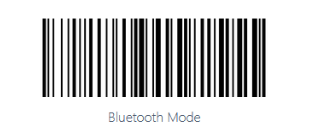
- Bluetooth Connection: Scan the "Bluetooth Mode" barcode below, then pair the scanner to your device in the Bluetooth configuration. After scanning the barcode, you should see a blinking blue light on the scanner that indicates the device is ready to pair.
Mandatory Scanner Setup
The scanner is essentially an external keyboard that is connected to your Essembi application. To help facilitate faster data processing, Essembi enables scanners to operate with a backtick prefix and suffix added to the scanned content to help automatically process the scan.
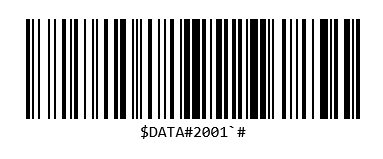
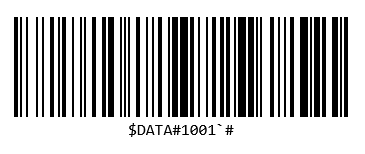
The NETUM scanner can set the backtick prefix and suffix with one scan each. Scan the two barcodes below, either printed or directly from your screen:
- Scan the "Prefix" barcode to set the prefix to a backtick.
- Scan the "Suffix" barcode to set the suffix to a backtick.
- Confirm this was enabled correctly by scanning into a word processor or field on your device. Scanned content should start and end with a backtick (`).
TVs
Manufacturing teams can deploy TVs throughout the manufacturing floor, break rooms, board rooms, and lobbies with rotating Essembi dashboards.
Recommended Device: Amazon Fire TV
Essembi recommends an Amazon Fire TV or Fire TV Stick for every dashboard TV. A Fire TV Stick plugs into any TV with an HDMI port, so it also works on older TVs without a usable built-in browser.
Essembi provides a Fire TV kiosk package that turns the device into a dedicated dashboard display:
- It boots straight into your published dashboard.
- It never sleeps or shows a screensaver.
- It reopens the dashboard automatically if it closes, for example after an overnight system update.
For install instructions, see Fire TV Kiosk Setup in Published Dashboards.
Building Rotating Dashboards for TVs
To configure rotating dashboards, see Published Dashboards. Once a URL is available for the rotating dashboard, set it as the dashboard address on your Fire TV during kiosk setup. Other smart TVs can also display the URL by opening the built-in browser and navigating to the dashboard address.